HR & Payroll

School HR and payroll software that works out loss of pay for you

Mark staff attendance and leave through the month, lock it, then start the payroll run. Premeena turns absences and leave beyond balance into loss-of-pay days, applies each person's salary components, and gives you payslip PDFs and a salary register.

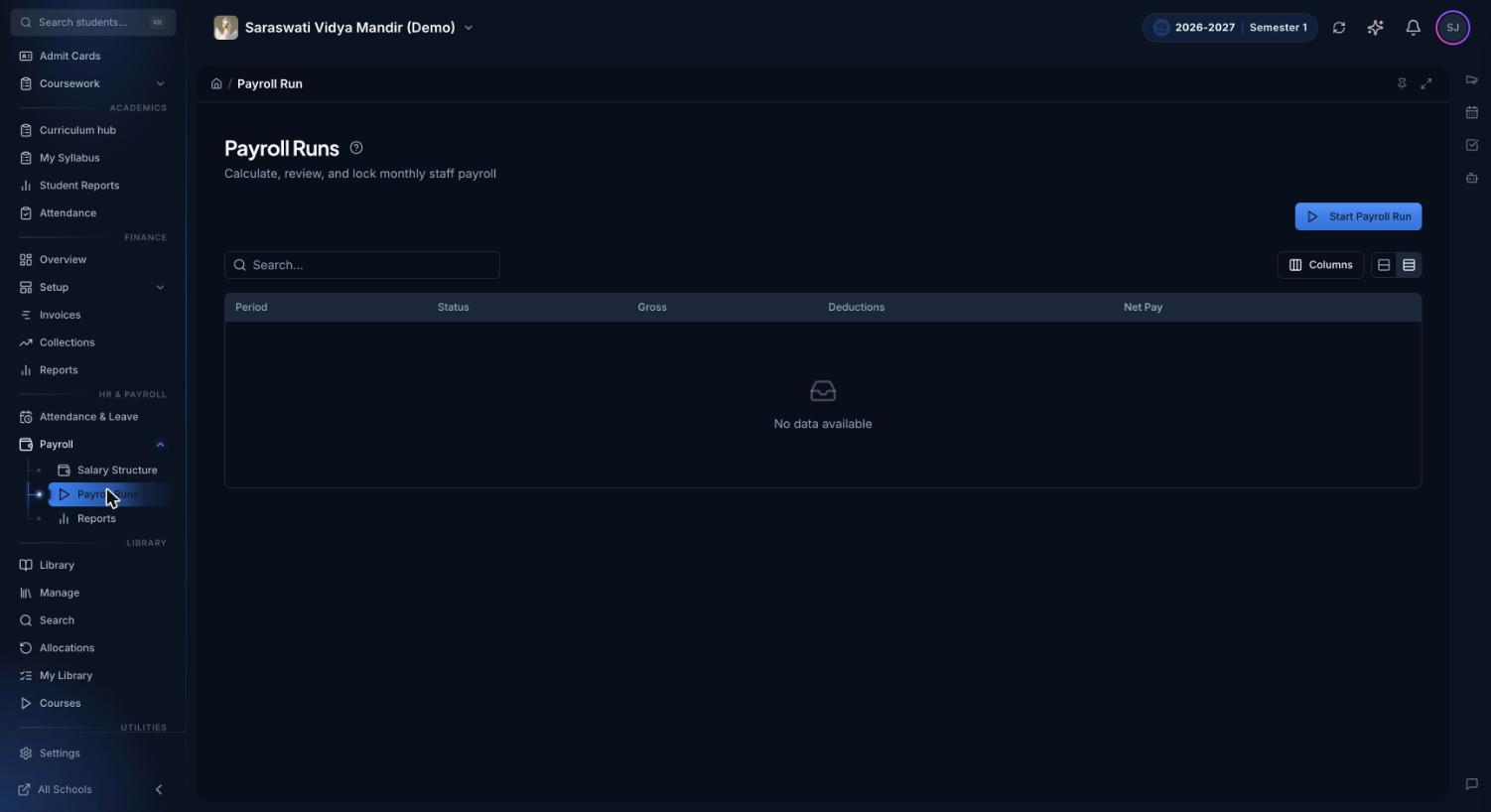
Premeena Payroll Runs page under HR & Payroll in the sidebar, with a Start Payroll Run button and a table of runs with Period, Status, Gross, Deductions and Net Pay columns
Payroll Runs, under HR & Payroll in the sidebar. Each month's run is listed with its status, gross pay, deductions and net pay. This demo school hasn't run payroll yet, so the list is empty.

What is school HR and payroll software?

School HR and payroll software keeps staff records, attendance and leave in one place and uses them to work out each month's salary. It applies each person's earnings and deductions, takes off pay for unpaid absences, and produces payslips and a salary register. The month-end figures come from the same records the school keeps every day.

In many schools, payroll is a spreadsheet rebuilt every month. The staff register is on paper, leave balances sit in another file, and loss of pay is counted by hand from both. Payslips are typed one at a time, and when a teacher questions a deduction months later, nobody can say who changed the figure.

What's in Premeena's HR and payroll module

Staff records

A profile for each staff member with joining date, employee ID, department, employment type (full-time, part-time or contract), qualifications, documents such as contracts, and an ID badge. Their position decides what they can open. Staff can be imported from a CSV file.

Staff attendance grid

One row per staff member, one column per day. Mark each day Present, Absent, Half day or Leave, with the leave type for leave days. Weekends and holidays are greyed out, and a department filter shows one team at a time.

Working days and holidays

Choose the working days of the week and add holidays by date. Together they decide which columns are greyed out in the grid and how many working days loss of pay is divided by, so set them before your first payroll run.

Leave types and balances

Create your leave types, such as Casual, Sick or Earned leave, with a code and days allowed per year. Set up the year's balances in one step and adjust a balance with a reason that is kept in the audit trail. Used days are counted from the grid.

Loss of pay from attendance

At month end, compute the LOP summary: working, present, leave and LOP days for every staff member. Check it against the grid, then lock the month. Payroll uses the locked figures and can't start until every active staff member's month is locked.

Salary components

Define earnings and deductions once, as a fixed amount or a percentage of Basic Pay. Each person gets a package with effective-from dates, so a raise from August shows up in August's run. A component can be added to all staff in one step.

Monthly payroll run

Start a month's run and Premeena creates an entry for every active staff member with gross pay, LOP deduction and net pay. Add Tax / TDS and other deductions where needed, confirm, lock, then mark staff paid one by one or all together.

Payslips

Once a run is locked, download a payslip PDF for each person with the school logo, earnings, deductions, LOP days and amount, Tax / TDS and net pay. You choose the label for the final line, for example "Net Pay" or "Take Home".

Reports and audit trail

A 12-month payroll cost chart, the salary register for any month (CSV, Excel or PDF), each person's payroll history, a leave and attendance report, cost by department and by salary component, and a payroll audit trail showing who changed what.

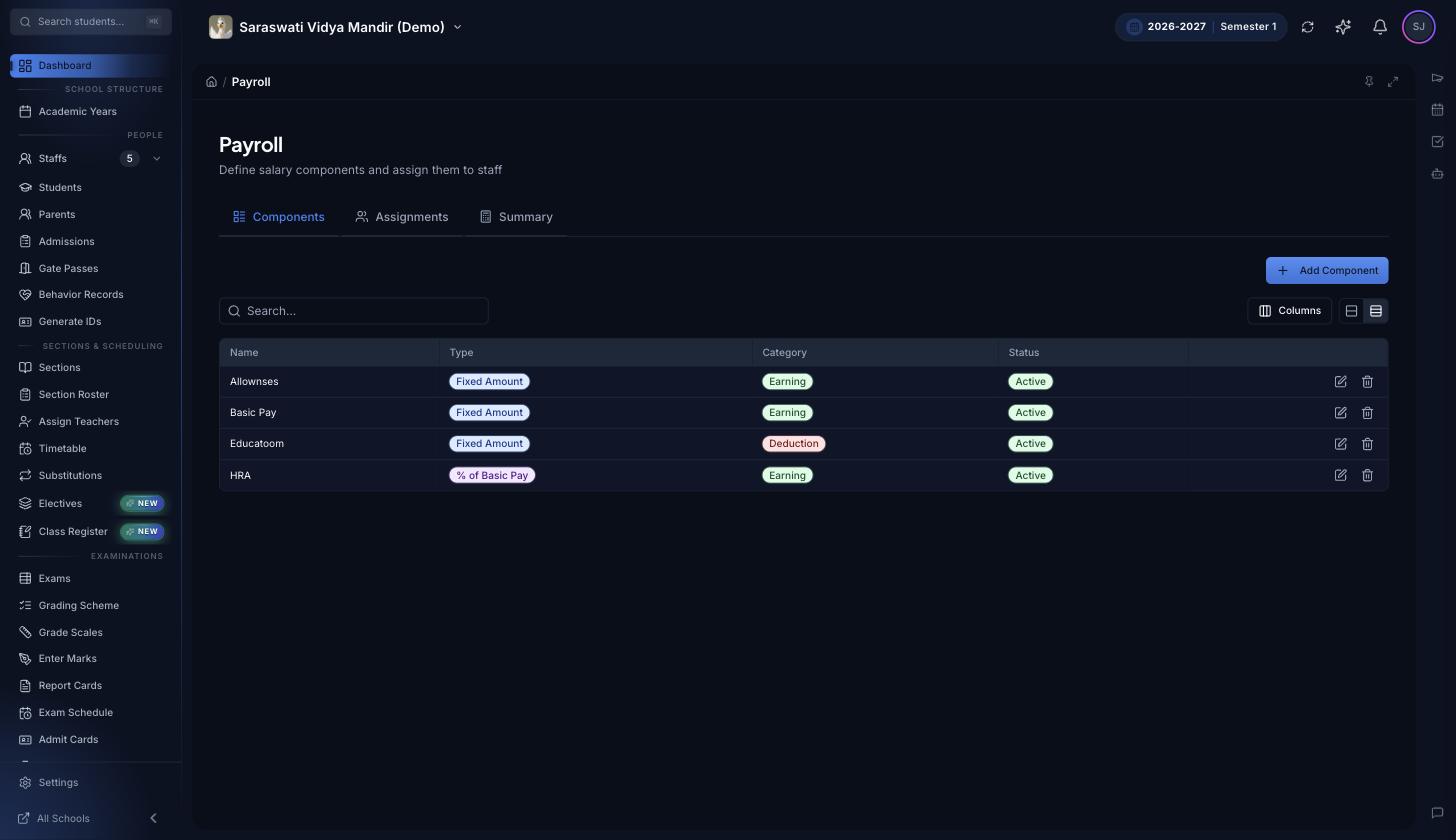
Premeena Payroll page on the Components tab, listing four salary components with their type, category and status: three earnings and one deduction, with HRA set as a percentage of Basic Pay
Salary Structure, Components tab. Every component is an earning or a deduction, and either a fixed amount or a percentage of Basic Pay, as HRA is here. The Assignments tab holds each person's package.

Monthly payroll checklist

Set these up once a year: leave types and balances, working days and holidays, salary components and each person's package. After that, every month follows the same steps.

  1. Keep the attendance grid current. Mark staff each working day, with leave against the right leave type.
  2. Fill the gaps. An unmarked working day counts as loss of pay, so a missed entry costs someone a day's salary.
  3. Compute and check LOP on the LOP Summary tab.
  4. Lock the month. This freezes the LOP figures. To fix a mistake, unlock, correct and lock again before the run.
  5. Check salary changes. Enter raises with the right effective date and mark leavers inactive; only active staff are included.
  6. Start the payroll run. Pick the month. Each entry shows gross pay, LOP deduction and net pay.
  7. Add tax and other deductions, such as TDS or a salary advance being recovered.
  8. Confirm and lock. Confirm every entry, then lock the run. Reopening a locked run clears confirmations and paid flags.
  9. Pay and mark paid. Pay through your bank, then mark entries paid.
  10. Share and file. Download payslips for staff and export the salary register for your accountant.

Each step is covered in the help centre: the HR and payroll overview, leave types and balances, salary components and the payroll run guide.

How Premeena calculates loss of pay

Loss of pay (LOP) is the salary deducted for working days a staff member wasn't at work and wasn't on paid leave. Premeena works it out in two steps.

Step 1: count the LOP days

  • Working days are the days of the week you mark as working (Monday to Saturday unless you change it), minus the holidays you add for that month.
  • An absent day counts as 1 LOP day. A half day that isn't covered by leave counts as 0.5.
  • A leave day with a leave type is paid while the person has balance left for that type. Once the balance runs out, further days count as LOP if the leave type is set to "Count as LOP when balance runs out". Otherwise they stay paid.
  • A working day left unmarked counts as 1 LOP day, so fill in the grid before you compute.

Step 2: turn LOP days into an amount

LOP amount = (monthly salary ÷ working days in the month) × LOP days

"Monthly salary" is the person's earning components minus any deduction components in their package. The divisor is that month's working days, so the daily rate varies a little by month. Tax / TDS and other deductions come off after LOP.

Loss-of-pay worked example

Illustrative figures for one teacher, not real salaries or a recommendation. The month has 30 days, four Sundays and one holiday, which leaves 25 working days.

ItemValue
Basic Pay (fixed)₹30,000
HRA (20% of Basic Pay)₹6,000
Transport allowance (fixed)₹1,500
Monthly salary₹37,500
Working days this month25
Daily rate (₹37,500 ÷ 25)₹1,500
Attendance2 days absent, 1 half day with no leave, 2 days of casual leave covered by balance
LOP days2 + 0.5 = 2.5 (the casual leave is paid)
LOP amount (₹1,500 × 2.5)₹3,750
Pay after LOP (₹37,500 − ₹3,750)₹33,750
Tax / TDS entered in the run₹1,200
Net pay₹32,550
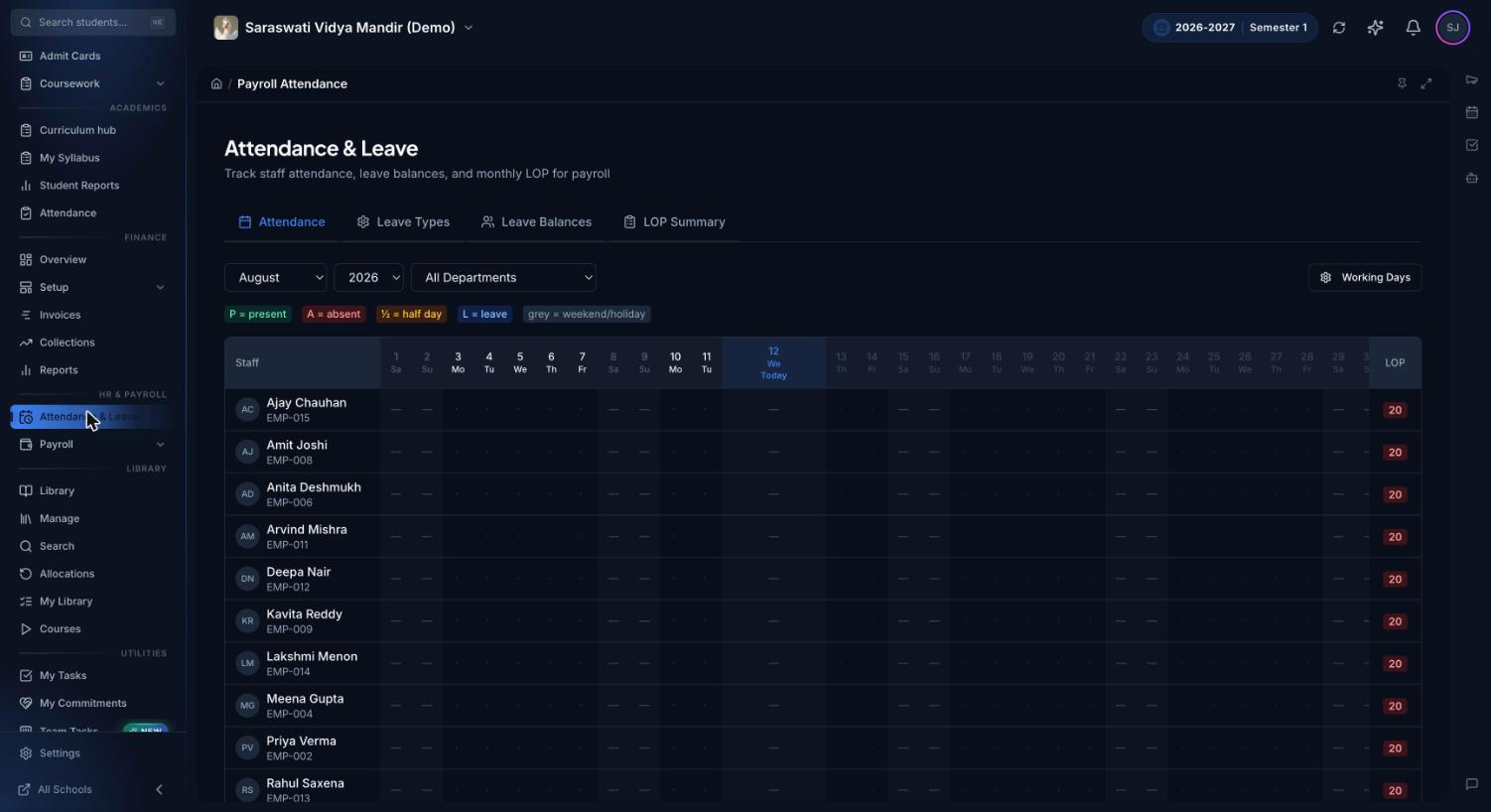
Premeena Attendance & Leave page for staff, with tabs for Attendance, Leave Types, Leave Balances and LOP Summary, month, year and department filters, a P/A/half-day/leave legend, a Working Days button and a day-by-day grid with an LOP column
Attendance & Leave for staff in August. Nothing has been marked yet in this demo, which is why every row's LOP column shows 20: unmarked working days count as loss of pay until they're filled in.

Who uses it

  • Owner or principal: sees monthly payroll cost and its trend, and sets positions. Attendance and payroll rights are separate, so an accountant can run payroll without editing attendance, and an assistant can mark attendance without seeing salaries.
  • HR or office administrator: keeps staff records and the attendance grid, manages leave types and balances, and computes and locks LOP at month end. Student registers are separate; see attendance management.
  • Accountant: maintains salary components and packages, runs payroll, enters TDS, marks salaries paid and exports the salary register.

Spreadsheet payroll vs Premeena

Where the month-end work goes when payroll runs from attendance.

TaskPaper register and spreadsheetPremeena
Staff attendancePaper register, totalled at month endGrid marked daily, with leave types and holidays
Leave balancesA separate file, updated by handBalance per leave type, with used days counted from the grid
Loss of payCounted by hand from two placesComputed from the locked month, with the same rule for everyone
CorrectionsOverwritten, with no historyReopen the run; changes are kept in the payroll audit trail

PF, ESI, TDS and professional tax

Indian schools usually need Provident Fund, ESI, TDS and professional tax on the payslip. Premeena doesn't calculate these from the statutory rules; you set them up yourself. PF can be a deduction component set as a percentage of Basic Pay. ESI and professional tax can be fixed deductions that you update when pay changes. TDS is entered on each person's entry in the payroll run and prints as its own Tax / TDS line on the payslip. Wage ceilings, eligibility thresholds, tax slabs and statutory returns stay with your accountant.

Outside India, LOP is usually called an unpaid leave deduction; the calculation is the same. Cover for a teacher on leave is arranged with substitutions.

What Premeena doesn't do (yet)

  • No automatic PF, ESI, TDS or professional tax. Set them up as described above.
  • No salary payments or bank file. Pay through your bank, then mark entries paid.
  • No Tally or accounting-software export. The salary register exports to CSV and Excel, which your accountant can work from.
  • Staff can't open their own payslips in Premeena yet. Download the PDFs and share them with staff.
  • Teachers can't apply for leave in the app yet. The office records leave in the attendance grid against the right leave type.
  • Unused leave isn't carried forward automatically. Add the days to the new year's balance as an adjustment.
  • No fixed LOP divisor. LOP is always divided by the month's working days; a fixed 26 or 30 isn't an option.

Frequently asked questions

What is school payroll software?

Software that calculates staff salaries from the school's own records: earnings and deductions, loss of pay for unpaid absences, payslips and a monthly salary register.

How does Premeena calculate loss of pay?

It counts LOP days in the locked month (absences, uncovered half days, leave beyond balance and unmarked working days), then multiplies them by the monthly salary divided by that month's working days.

Does Premeena calculate PF, ESI and TDS automatically?

No. You add PF, ESI and professional tax as deduction components and enter TDS on each entry in the payroll run. Premeena doesn't apply statutory ceilings, thresholds or tax slabs.

Can we generate salary slips for teachers?

Yes. Once a payroll run is locked, you can download a payslip PDF for each staff member. Staff can't open their own payslips in Premeena yet, so the office shares them.

Can teachers apply for leave online?

Not yet. The office records leave in the staff attendance grid against the right leave type, which updates that person's leave balance.

Can our accountant run payroll without access to everything else?

Yes. Access is set by position, and payroll rights are separate from attendance rights, so you can give the accountant's position payroll access only.

What if we find a mistake after locking?

Reopen the payroll run, correct it, then confirm and lock it again; reopening clears confirmations and paid flags. If the attendance was wrong, delete the draft run, unlock the month, fix the grid and lock it again.

Is the HR and payroll module free?

Yes. HR and payroll are part of Premeena's free core platform, with no per-staff or per-student fee.

Run next month's payroll from attendance

Set up leave types and salary components once, then lock the month and start the run. HR and payroll are part of Premeena's free core platform.

Free core platform · No credit card · No setup fee