Admission management system for schools from first enquiry to enrolled student
Put an online admission form on your school page or your own website, log phone and walk-in enquiries, and move every applicant through review, offers and the waitlist in one pipeline. When a family takes the seat, one click creates the student, the guardian and the admission number.
The Admissions page before the season opens: a counter for each stage, a button to log a phone or walk-in enquiry, and a link to the public form.
What is an admission management system?
An admission management system handles a school's intake from first contact to first day. It captures enquiries and online applications, tracks each applicant through review, interviews, offers and the waitlist, collects documents, and turns accepted applicants into enrolled students without anyone typing the same details twice.
Without one, admission season runs on an enquiry register at reception, printed forms, photocopied birth certificates and a spreadsheet of offers. The same family is written down three or four times: in the register, on the form, in the fee ledger and for the ID card. Seats left are counted from memory, and parents phone to ask about decisions.
What Premeena's admissions module does
An online admission form on day one
Every school gets a public application form on its page at sma.premeena.com/your-school. Parents fill it in on a phone or laptop without creating an account: the student's details, the grade, the guardian's contact details and any questions you add. They see a reference number as soon as they submit.
Embed it on your own website
Already have a school website? Copy the embed code from admission settings and paste it into any page that accepts HTML. The form resizes itself to fit, takes its colours from your Premeena landing page, and every submission lands in the same pipeline.
Custom fields per grade
Add text, number, date, dropdown or checkbox questions, each required or optional, limit each one to the grades it applies to, and set the order they appear in. Previous school, a second guardian and a photo upload are standard extras you switch on or off.
Open and close admissions by grade
Toggle each grade open or closed for the season. Closed grades disappear from the public form but stay in your settings for next year. Close a grade when its seats are filled, or switch the whole form off between admission cycles.
Enquiries from every source
Log phone calls, walk-ins, emails and referrals with just the student's name and a guardian's name and phone number, plus the source and your notes. When the family decides to apply, promote the enquiry to an application and fill in the missing details.
One pipeline for every applicant
Applications move through Applied, In review, Offered, Accepted and Enrolled, with Waitlisted and Rejected along the way. Counters show what is waiting for a decision, and search finds anyone by name, phone, email or reference number. Each application keeps an interview slot and internal notes the family never sees.
Seat caps and a numbered waitlist
Set a capacity on each grade and section. A badge turns amber at 80% and red when full, counting offers, acceptances and students on the roll; going over takes a logged 'Offer anyway'. Waitlisted applicants get a numbered place in the queue.
Offer emails and a document link
Offer and rejection emails go from your own templates, with the student's name, grade and reference filled in. The offer can carry a single-use link, valid for seven days, where parents add their address and health details and upload each document you require. No login needed.
Enrol in one click
Pick a section, which shows its seats left, and optionally a fee structure. Premeena generates the admission number, creates the student and guardian records, adds the student to the roster, attaches the uploaded documents, drafts the fee assignment and emails the family a welcome.
The admission pipeline, stage by stage
Each application sits in one stage. Its buttons only offer moves that make sense from there, and every move goes into the audit trail.
Stage
What happens
Who acts
Enquiry
A phone call, walk-in, email or referral is logged with its source. A name, a guardian and a phone number are enough.
Front office
Applied
An online application arrives with its reference number, or an enquiry is promoted once date of birth, email and city are added.
Parent or front office
In review
Staff read the answers, add internal notes and set an interview slot.
Admissions coordinator, principal
Waitlisted
The applicant takes the next numbered place in that grade's queue. The top three appear under Next to promote.
Admissions coordinator
Offered
The offer email goes out with the completion link, after a warning if the grade is already full.
Coordinator, then the parent uploads documents
Accepted
The family has taken the seat and is waiting to be enrolled.
Admissions coordinator
Enrolled
Student, guardian, admission number, section place, documents, draft fees and welcome email, from one action.
Coordinator or office
Rejected
The rejection email goes out from your template. The application can be reopened.
Principal or coordinator
How to embed the admission form on your school website
The form runs inside an iframe, so your domain and hosting don't change.
Open the grades you're admitting to and set up your fields in admission settings.
Copy the embed code from the Embed on your website panel. It's an iframe plus a few lines of script that resize the form as fields appear.
Paste it into your site: a Custom HTML block in WordPress, an HTML or embed element in Wix, Squarespace or Webflow, or a hand-written page.
Use the direct URL if your site builder only takes a link, or point an "Apply now" button at it.
Send a test application from the embed preview, check it appears under Applied, then reject it.
No website yet? Turn on the Application Form section in the landing page builder and publish, and the form appears on your school page at sma.premeena.com/your-school. Every setting is explained in the admissions help docs.
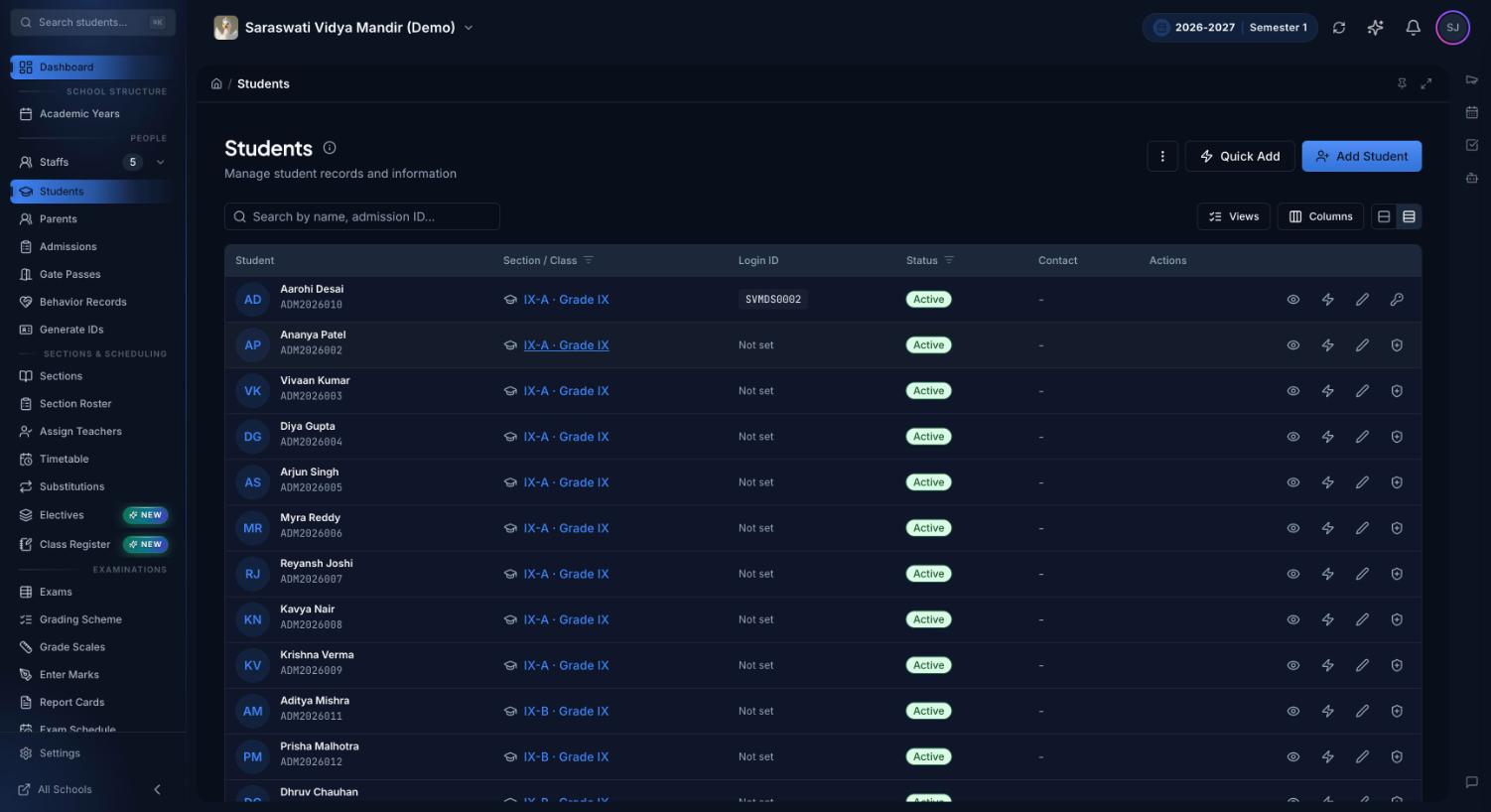
Where enrolled students end up: the Students list, with an admission number and section for each. Enrolling from the pipeline puts the student here at once.
How an admission season runs in Premeena
Set seats and documents. Put a capacity on each grade and section, and list the documents you collect in Document Requirements, each mandatory or optional.
Connect email. Admission emails go through your school's own email provider (Resend, SendGrid, Postmark, Brevo, Mailgun or SMTP). Verify it, then write your offer and rejection templates.
Publish the form and open the grades you're admitting to.
Log every enquiry and promote the families who decide to apply.
Review, interview and decide: offer, waitlist or reject. Offers send the document link.
Enrol in one click, choosing the section and, if you like, the fee structure.
Carry on. Your accountant activates the draft fees, and you can print ID cards from the new profile.
Students already on your roll don't need to go through admissions: import them from a CSV file once.
Who uses it
Owner or principal: sets seat caps and decides. The admin dashboard shows the year's admissions funnel, conversion rate and how long the oldest application has waited for review.
Admissions coordinator or front office: logs enquiries, runs the pipeline and enrols students. Owners and managers have access by default; others get it through a position.
Accountant: reviews the draft fee assignment created at enrolment and activates it in fee management.
Parents: apply without an account and upload documents from their phone.
Admission register and spreadsheets vs Premeena
Job
Register and spreadsheets
Premeena
Application form
Printed, collected, typed in later
Online form with a reference number, straight into the pipeline
Seats left
Counted when someone asks
Capacity badge on every application; overrides are logged
Waitlist
A notebook list, order open to argument
Numbered position per grade; promote the next in one click
Documents
Photocopies in a folder; gaps found later
Uploaded against your list; missing mandatory documents flagged on the student's profile
After enrolment
Details retyped into the fee ledger, roll and ID card sheet
Student, guardian, section and draft fees created from the application
Admissions in Indian schools
The workflow suits CBSE, ICSE and state board schools, and schools anywhere else:
Your document list. Birth certificate, Aadhaar card, transfer certificate, previous report card, photographs or a category certificate, each mandatory or optional. For students leaving, see our transfer certificate format guide.
Class-specific questions. A grade-limited field keeps a stream preference on the Class 11 form only, so nursery parents never see it.
Phone-first parents. The form and the document upload page work in any phone browser, with nothing to install. Parents upload a PDF or a photo of each document.
Hindi for the office. Staff can use Premeena in Hindi or English.
What Premeena doesn't do (yet)
No online application or registration fee. Parents can't pay through the form, so collect it at the school office. After enrolment, a one-time "on admission" fee component can be billed with the student's other fees.
No SMS or WhatsApp. Offer, rejection, document-link and welcome messages go by email only. The guardian's phone number is one tap away on each application.
No entrance-test scoring. Set an interview or test slot and keep the outcome in internal notes; there is no marks entry or ranking, and the slot isn't sent to the family automatically.
No applicant login. Parents get a reference number and decision emails, not a status page. Once the student is enrolled, the school can give parents a parent portal login.
No automatic enquiry follow-up reminders. The Enquiry tab is your follow-up list.
Frequently asked questions
What is an admission management system?
Software that runs a school's intake, from enquiries and online applications to offers, waitlists, documents and enrolment. In Premeena an accepted applicant becomes a student record in one click.
Can parents apply online without creating an account?
Yes. The online admission form works in any browser with no login. Parents fill in the student's and guardian's details and any custom fields you added, and get a reference number when they submit.
Can we put the admission form on our existing school website?
Yes. Paste the embed code from admission settings into any page that accepts HTML, such as WordPress, Wix, Squarespace or Webflow. Submissions land in the same pipeline.
Can parents pay the registration fee online?
No, there is no online payment yet. Collect registration fees at the school office. After enrolment, a one-time admission fee can be billed through the fee module and recorded by staff.
Does Premeena send SMS or WhatsApp updates to parents?
No. Admission messages go by email through your school's own verified email provider: the offer, the rejection, the document link and the welcome email.
How does the waitlist work?
A waitlisted application gets the next numbered position for its grade, and you can reorder by hand. A Next to promote panel shows the top three per grade, and one click moves an applicant to Offered with the usual capacity check.
Which documents can parents upload, and who can see them?
Your school sets the list, each document mandatory or optional. Parents upload them through the offer link, only staff with admissions access can open them, and they move to the student's record at enrolment.
Can we run entrance tests and interviews?
You can set an interview or test slot on each application and keep notes. Premeena does not record entrance-test marks or rank candidates yet.
Is the admissions module free?
Yes. Admissions is part of Premeena's free core platform, with no per-student fee and no credit card to start.